Product
How to Validate Tax IDs in Bulk: An Excel Workflow for Finance Teams
Step-by-step guide to bulk TIN syntax checks: prepare an Excel file, run country-specific structural rules, review the report, and fix malformed rows.
 TIN Validator Team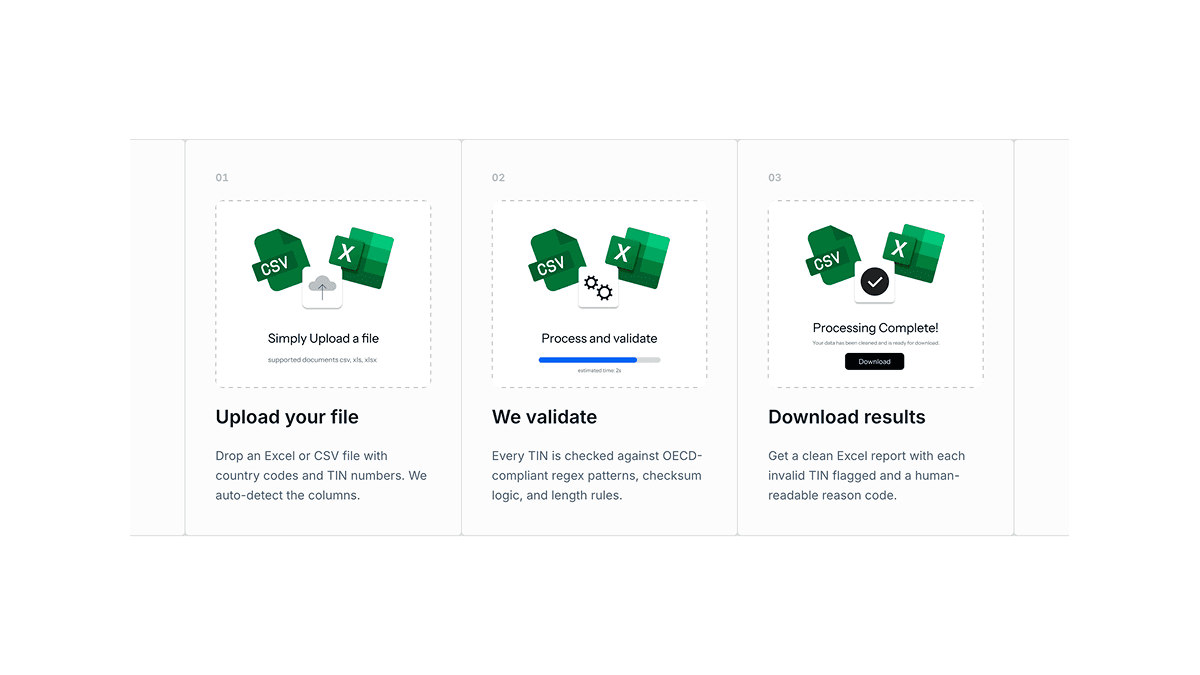
Bulk TIN validation lets finance teams check many tax identification numbers in one upload instead of entering IDs one at a time. You prepare an Excel file with country codes and TIN values, run the implemented structural rules, and export a report showing which rows failed.
The useful first pass is structural: catch empty values, unsupported country rules, unexpected characters, and lengths or patterns that do not match the selected jurisdiction.
When bulk validation beats single checks
| Scenario | Single check | Bulk validation |
|---|---|---|
| Onboarding 3 new vendors | Manual, fast enough | Optional |
| Quarterly vendor master cleanup | Too slow | Recommended |
| Payroll migration (500+ employees) | Impractical | Required |
| API-integrated onboarding | N/A | Continuous via API |
If your team touches more than 50 tax IDs per month, bulk validation typically saves hours of manual review and prevents bad data from spreading across systems.
Step 1: Prepare your Excel file
Your upload needs at minimum:
| Column | Required | Example | Notes |
|---|---|---|---|
country_code | Yes | DE, US, GB | ISO 3166-1 alpha-2 |
tin | Yes | 12 345 678 901 | Raw value; separators are stripped automatically |
entity_type | No | individual, company | Use when a country has different rules per type |
reference_id | No | VND-1042 | Your internal key for matching results back |
Tips for clean uploads:
- Export directly from your ERP or HRIS when possible — avoid copy-paste through email
- Keep one TIN per row; do not combine multiple IDs in a cell
- Include the country code even if all rows are domestic — it future-proofs mixed files
- Do not pre-strip formatting unless your source system requires it; normalization happens during validation
Step 2: Upload and run validation
- Sign in to your TIN Validator account (free tier includes 1,000 validations/month).
- Navigate to the bulk upload area in your dashboard.
- Select your Excel file and confirm column mapping.
- Start the job and wait for the validation report.
Each row is checked against the active syntax rules for its country, including implemented length, character, and regular-expression constraints. The dashboard currently reports syntax confidence and does not perform live registry lookups.

Step 3: Read your validation report
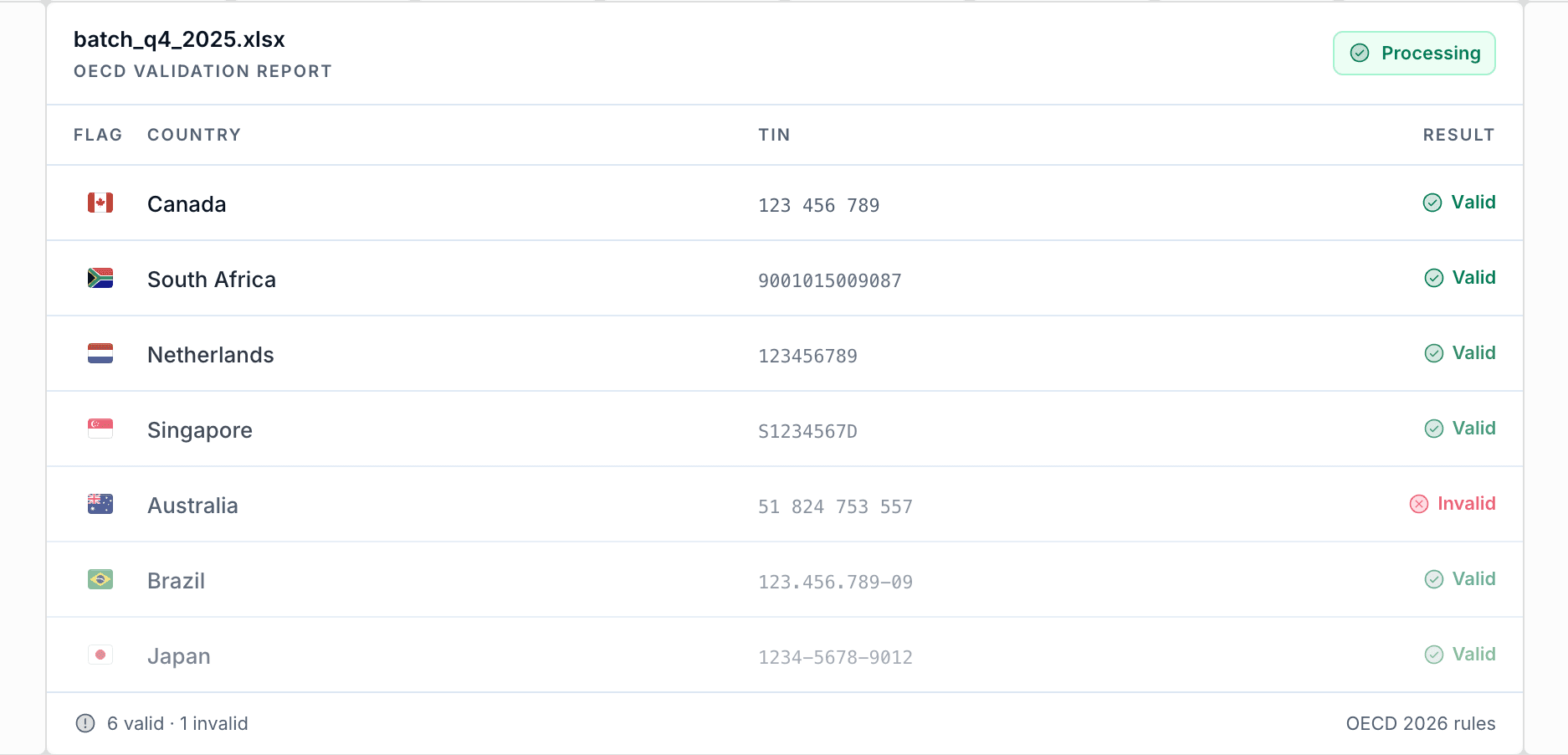
The downloaded workbook contains a summary and the rows that failed:
| Field | Meaning |
|---|---|
| Summary | Total, valid, and invalid record counts plus pass rate |
| Original row | The uploaded fields for each failed record |
| Failure reason | Why the active syntax rule rejected the TIN |
| Validation time | Timestamp added to each failed record |
Export the report as Excel for remediation workflows or push results to downstream systems via the API.
Example outcomes
- Passed syntax — matched an active structural rule; registry status and ownership remain unconfirmed.
- Invalid — failed an implemented format, length, or character rule; verify the source value before re-uploading.
- No rules available — the selected country has no active rule; use the linked official source and route the record to manual review.
Step 4: Remediate and re-validate
A practical remediation loop:
- Filter the export to
invalidrows only. - Contact vendors or employees for corrected IDs.
- Update your master data system of record.
- Re-upload the corrected subset.
- Archive the final report for audit evidence.
Teams that run this quarterly report 40% fewer payment and filing exceptions tied to bad tax IDs in the following period (internal aggregate across TIN Validator customer workflows, 2025).
Bulk validation vs. API integration
| Approach | Best for | Setup time |
|---|---|---|
| Excel upload | One-time cleanups, quarterly audits | Minutes |
| REST API | Continuous onboarding, ERP sync | Hours (one-time) |
| Webhooks | Async jobs with downstream automation | Hours (one-time) |
For ongoing vendor or employee intake, integrate validation at the point of entry so bad IDs never reach production tables. See the API documentation for authentication and endpoint details.
Common bulk validation mistakes
- Missing country codes — without them, rules cannot be applied correctly.
- Mixing TIN types in one column — SSN and EIN both in
tinwithoutentity_typewhere required. - Validating once, never again — country rules change; re-run annually on master data.
- Skipping remediation tracking — always tie results back to
reference_idfor audit trails.
Frequently asked questions
How many TINs can I validate at once?
Free accounts include 1,000 validations per month. Enterprise plans support higher volumes — contact sales for custom limits.
Does bulk validation store my TINs?
TIN Validator is designed for validation workflows with minimal retention. Review the privacy policy for current data handling practices.
Can I validate multiple countries in one file?
Yes. Include the correct country_code on each row and the engine applies the matching rule set per line.
What file formats are supported?
Excel is the primary upload format. Ensure UTF-8 encoding for international characters.
Next steps
- Create a free account and upload your first file.
- Try a single-country validator to inspect rules before bulk runs.
- Read what TIN validation checks if your team is new to structural validation.
Bulk validation turns tax ID quality from a manual chore into a repeatable control — one Excel away from a cleaner vendor and payroll database.
Get started today
Ready to validate at scale?
Start with 1,000 free validations per month, or talk to us about enterprise volume and custom integrations.
No credit card required · Cancel anytime